Size listings
How to show Standard, Deluxe and Premium flower arrangements online
Short answer
Photograph the actual Standard, Deluxe and Premium pieces with a fixed camera, common framing and consistent light. Label the size shown, price, approximate measured dimensions and included vessel. If only one size exists, identify that size clearly and describe the others honestly. Never enlarge the same image and present it as a bigger arrangement.
In this guide Jump to what you need
A customer should be able to tell which arrangement matches the price they have selected. Start with the designs you can repeat at each price. Then use the photographs, measurements and labels together; a beautiful image on its own cannot explain the size. Start with the free pricing calculator and your actual recipes.
Write the offer before you make the images
For each size, record the recipe, flower grade, vessel, approximate finished dimensions and price. There is no universal amount that “Deluxe” must add. The difference should be something your shop can fulfil, with the focal flowers and overall design considered as well as foliage.
| Size | Roses | Snapdragons | Foliage stems | Vessel |
|---|---|---|---|---|
| Standard | 6 | 2 | 3 | Record the actual vessel |
| Deluxe | 9 | 3 | 4 | Same vessel only if suitable |
| Premium | 12 | 4 | 6 | Record any larger matching vessel |
These whole-stem counts are an example of making the offer specific, not an industry rule. Cost your own recipe in the free flower pricing calculator. Allow for a different container, build time and waste instead of multiplying the final retail price blindly.
Keep scale comparable through the entire workflow
Reserve room for the largest piece
Set the camera where the Premium fits completely. Mark the camera position and product position so the other sizes use the same viewpoint.
Photograph the sizes in the same session
Keep camera height, lens, light and surface consistent. Place each piece in the marked position; leave the extra space around the smaller size.
Measure the finished pieces
Record approximate height and width in the units your customers use. Measure the product, not decorative props or the room around it.
Apply one crop to the set
Avoid automatic per-image zoom that makes every bouquet equally large. A fixed-canvas comparison from the original photos is the most dependable visual scale reference.
Preview every product option on a phone
The selected size, visible photo, price and written description should all agree. Keep a full-view image and a detail image available.
Using a different setting for the product photos
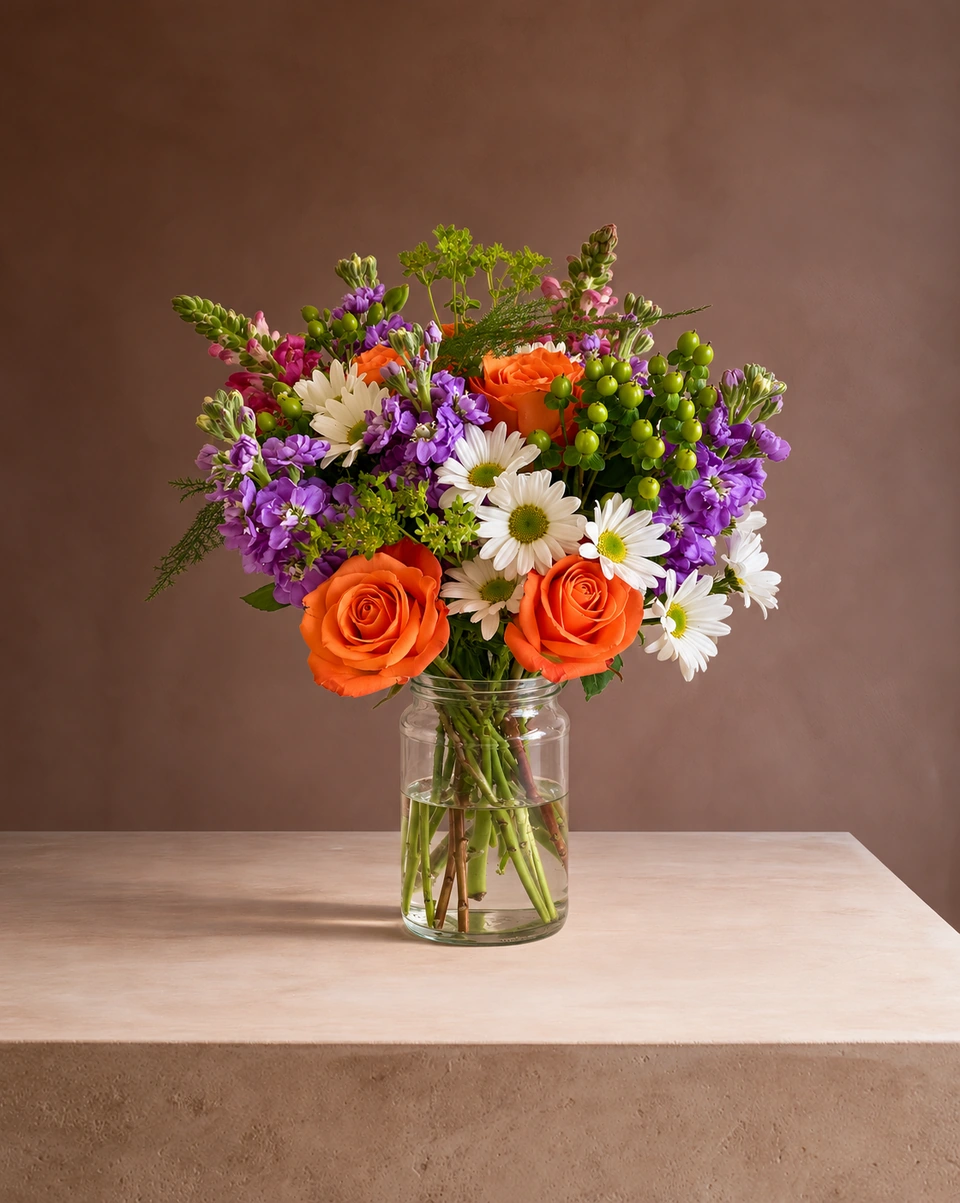
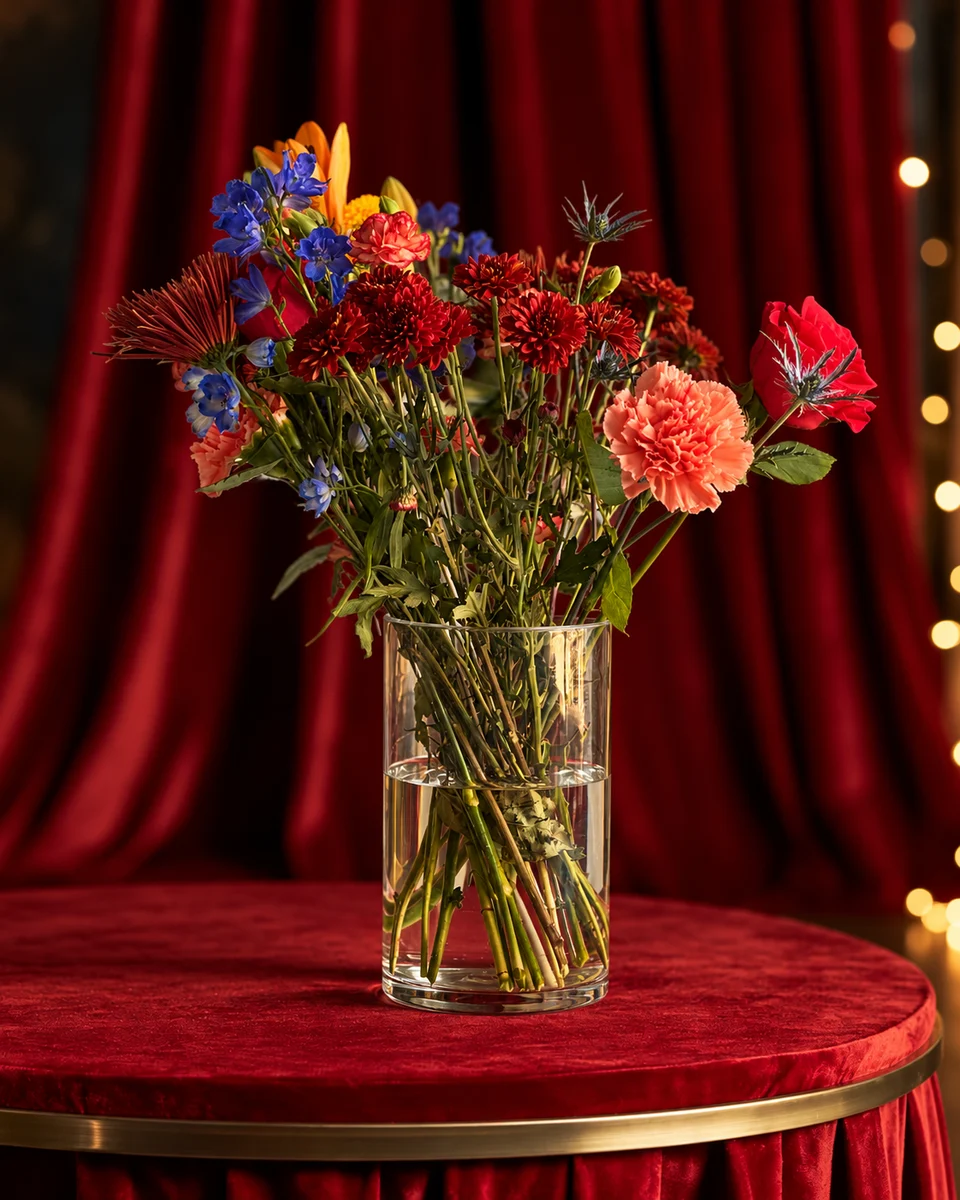
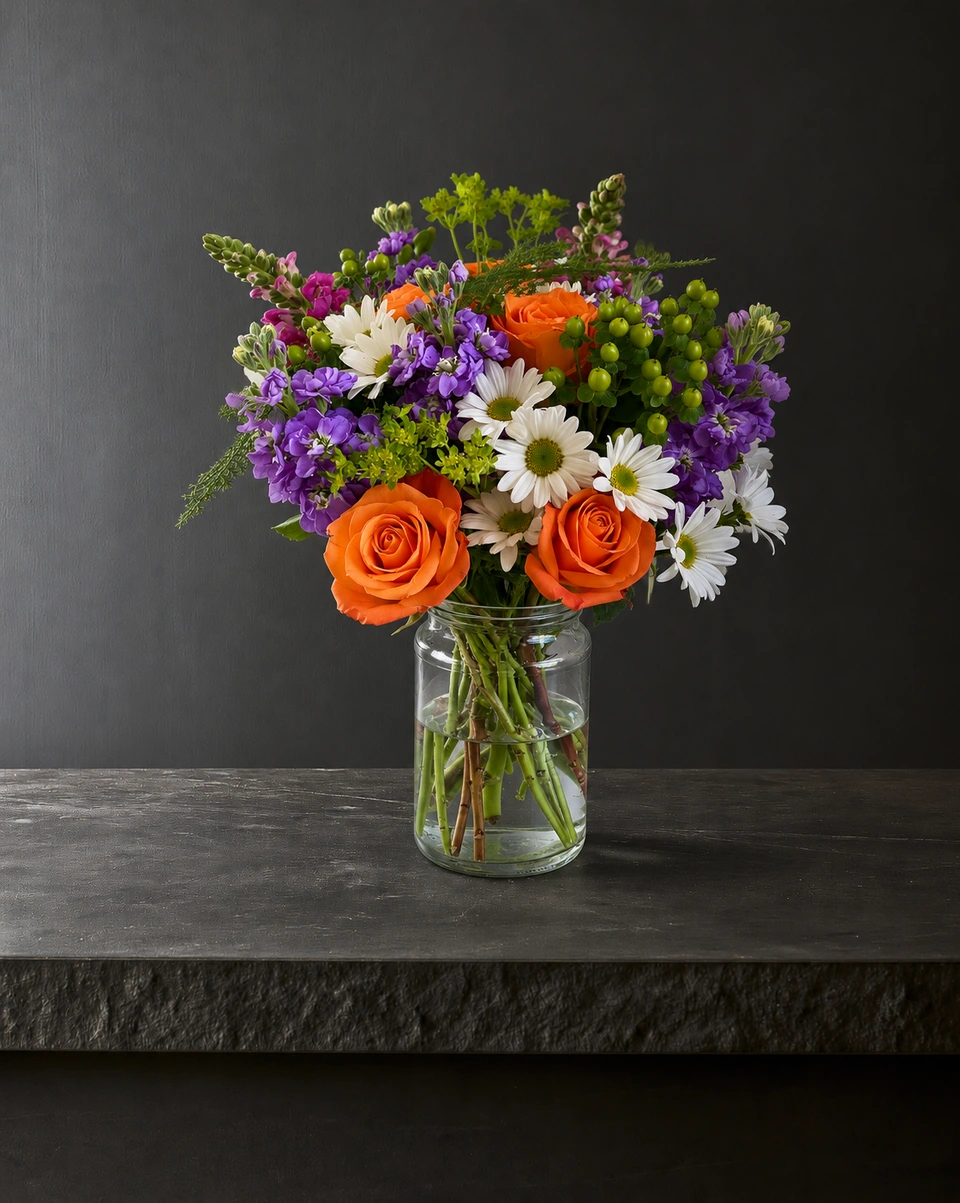
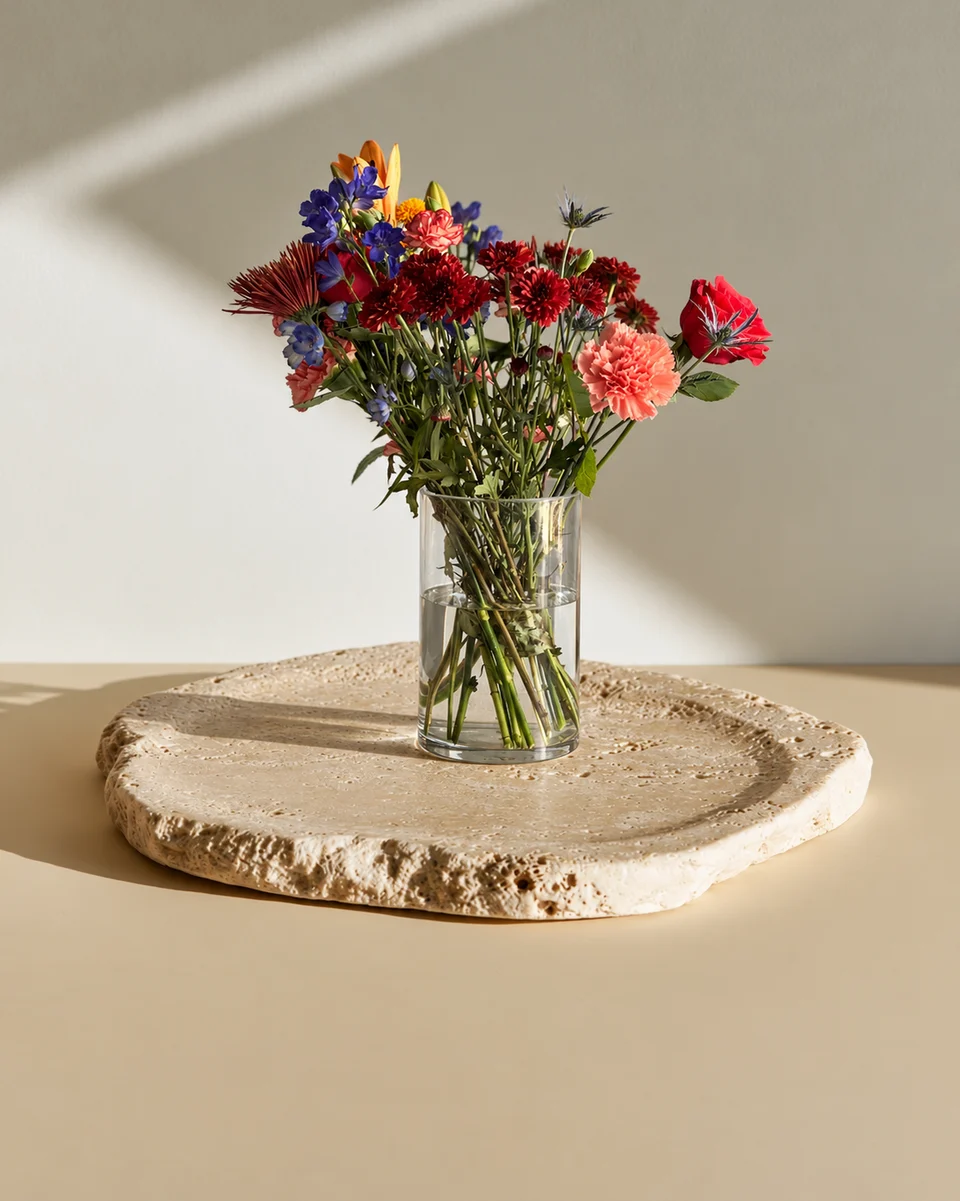
FlowerShoot can stage each finished arrangement in the same chosen room. It does not make edited perspective a physical measurement: review scale against the originals and keep a real comparison image for size. The pair below is one recorded staging example with a cropped display copy, not a Standard/Deluxe/Premium comparison.
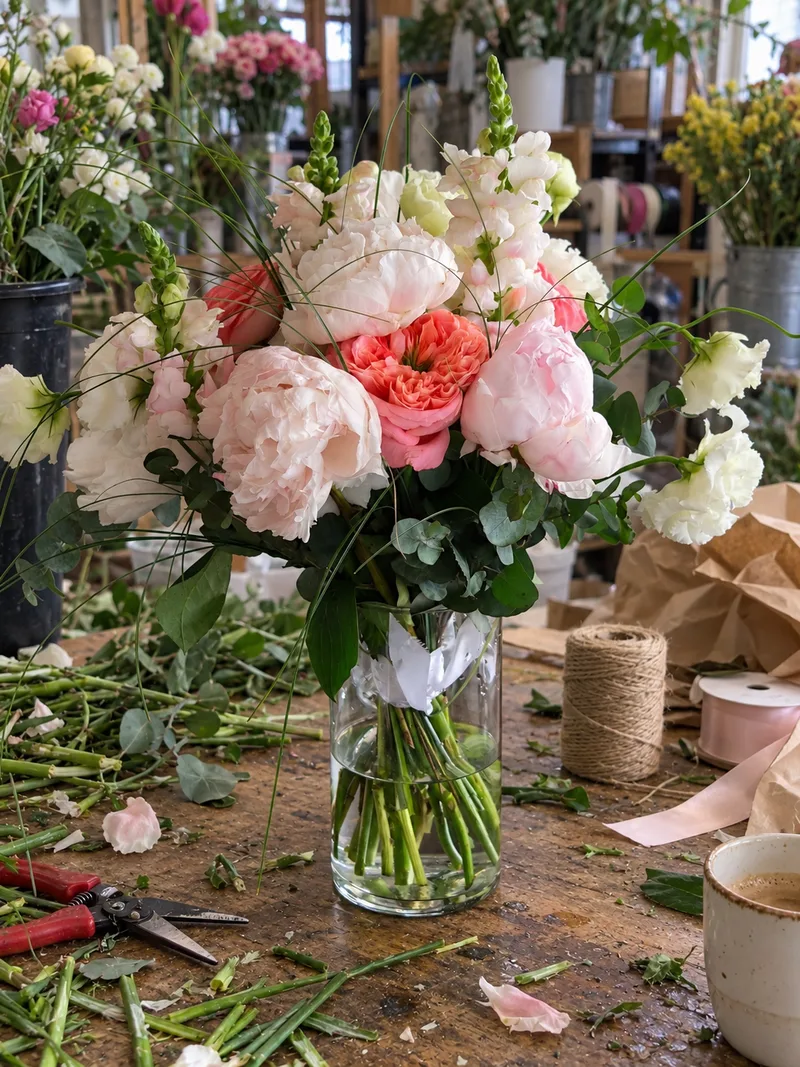 Phone photo
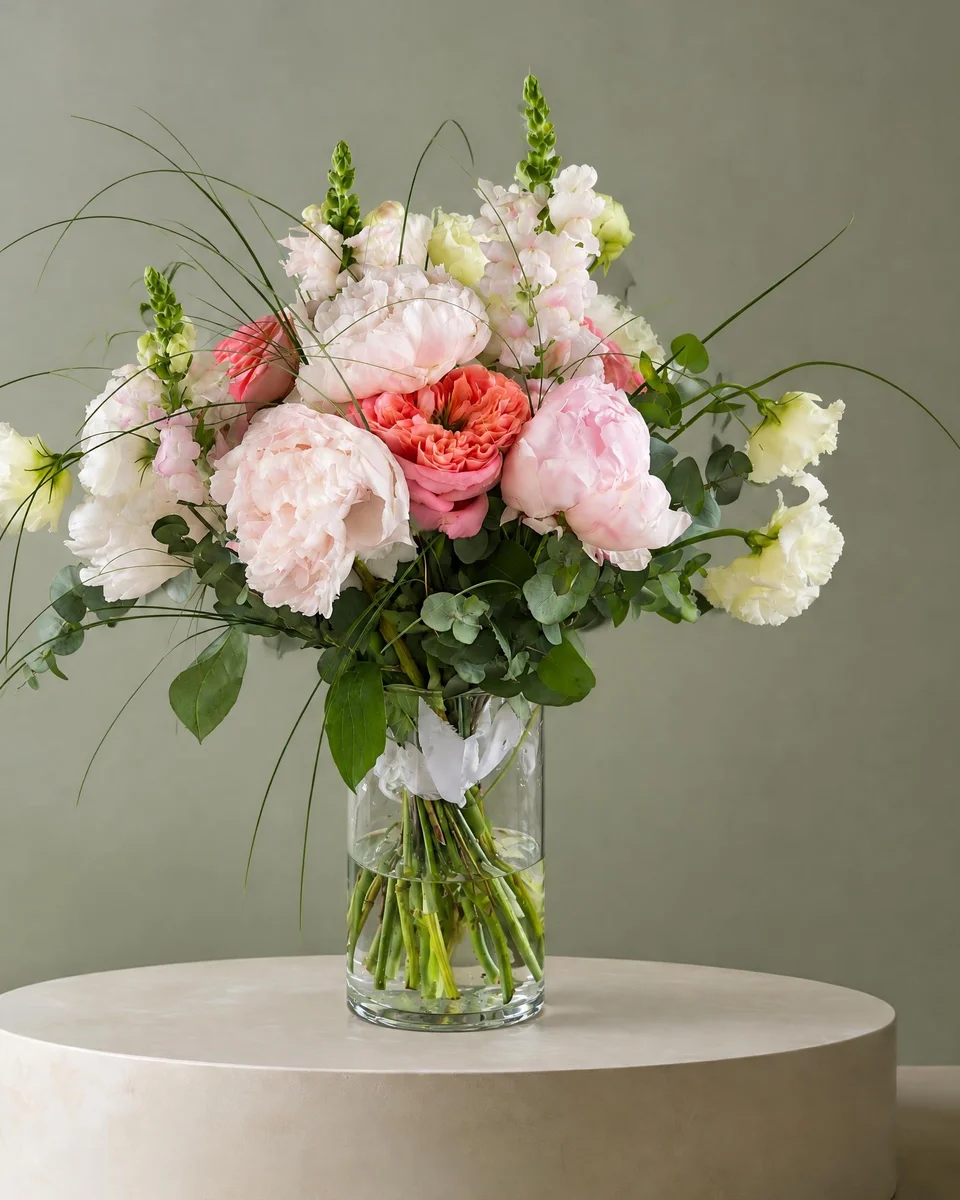 Studio photo
What to publish if only Standard has been photographed
Caption it “Standard shown” and say what the other options contain. Use measured dimensions only when you have checked them; do not invent them from an enlarged picture. Photograph the larger pieces when you next make them and update the listing. FlowerShoot currently stages the piece you upload; automatic fuller-size photos are not offered in the live studio.
Finish the listing and menu
In Shopify, a variant can have its own product image; menus and theme behaviour vary, so test the result rather than assuming the first uploaded image is correct. Use the free menu maker for a clear price menu, and add your own verified size wording. Product photos made in FlowerShoot start as free previews; a paid plan unlocks full-size downloads at the generated size.
| Check | Ready when |
|---|---|
| Price and selection | Choosing Deluxe changes to the right price and image |
| Size claim | Dimensions and recipe describe the product you will send |
| Vessel | Any vessel change is photographed or clearly explained |
| Substitutions | The policy explains possible changes without hiding a different design |
| Old posts | Shared links still lead to the current offer |
Made only for florists
From a bench photo to your next listing
Your flowers are the product. FlowerShoot makes the photo as lovely as the arrangement, wherever you share it: one phone photo in, a studio photo out.
For social media
Fresh posts and Stories every week, without a photo shoot or moving a single bucket. Download post and Story sizes with your logo and a caption, and let your flowers shine in a calm, professional feed.
For selling on your website
Choose a house style for your collection, then check each result against the piece you sell. Keep a real product photo alongside staged views, with clear size and vessel details.
- Skip the photographer. A studio photo from one phone photo, in about a minute.
- Standard photos from 19.5¢. One standard photo uses 1 credit. Monthly plans start at $10 for 50 credits. Optional 4K generation uses 2 credits.
- Try before you subscribe. Start with 3 free previews, no card. Monthly plans start at $10 for 50 credits.
- Your real flowers. Start from your own arrangement. Compare the result with the original before listing it.
- 200+ rooms made for flowers. Studios, pedestals, homes, weddings and every season.
Quick answers
Do Standard, Deluxe and Premium have standard flower counts?
No universal recipe applies. Set the size steps from your own design, cost and capacity, then show and describe what each option actually includes.
Can I use one picture for all three arrangement sizes?
You can use one clearly labelled “Standard shown” photo with honest descriptions of the other sizes. It is less informative than separate photos. Do not zoom or stretch that picture and present it as a larger physical arrangement.
Can I compare size from digitally staged room photos alone?
No. Camera framing and generated perspective can change the impression of scale. Keep real comparison photos and measured approximate dimensions; review edited images against them.
Does FlowerShoot make Deluxe and Premium from one upload?
Not currently in the live studio. Photograph the finished size you want to show and stage that piece. The free pricing calculator can estimate tier prices, and the menu maker can present your own photos and labels.
Sources
Platform rules change. Check each one’s current help pages before you upload.