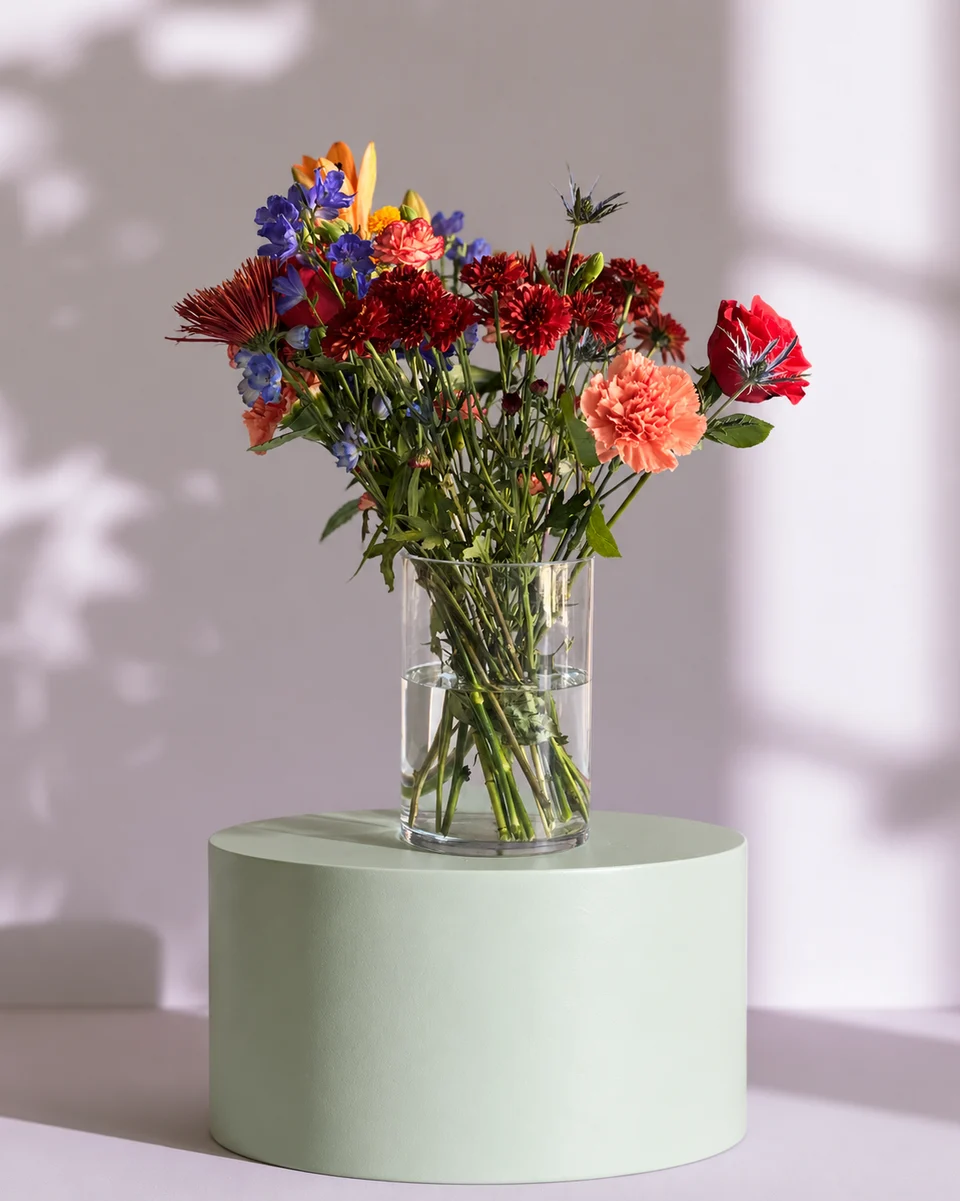
For home florists and market sellers
Square Online florist photos for a clear pickup menu
Short answer
If you sell flowers at a market or from home, a Square Online menu can give buyers a clear choice before pickup. Photograph each real design, use one square crop and keep its size and container visible. FlowerShoot makes styled product photos in about a minute and reuses a room across the menu. Plans start at $10 for 50 standard photos; try 3 free previews. A paid plan downloads the files, which you upload to Square yourself.
In this guide Jump to what you need
When a buyer orders for pickup, the image must make the choice easy before they arrive. Pair a small, accurate menu with FlowerShoot’s listing workflow, rather than photographing an entire collection in a new physical set each week.
Start with the orders you can fulfil
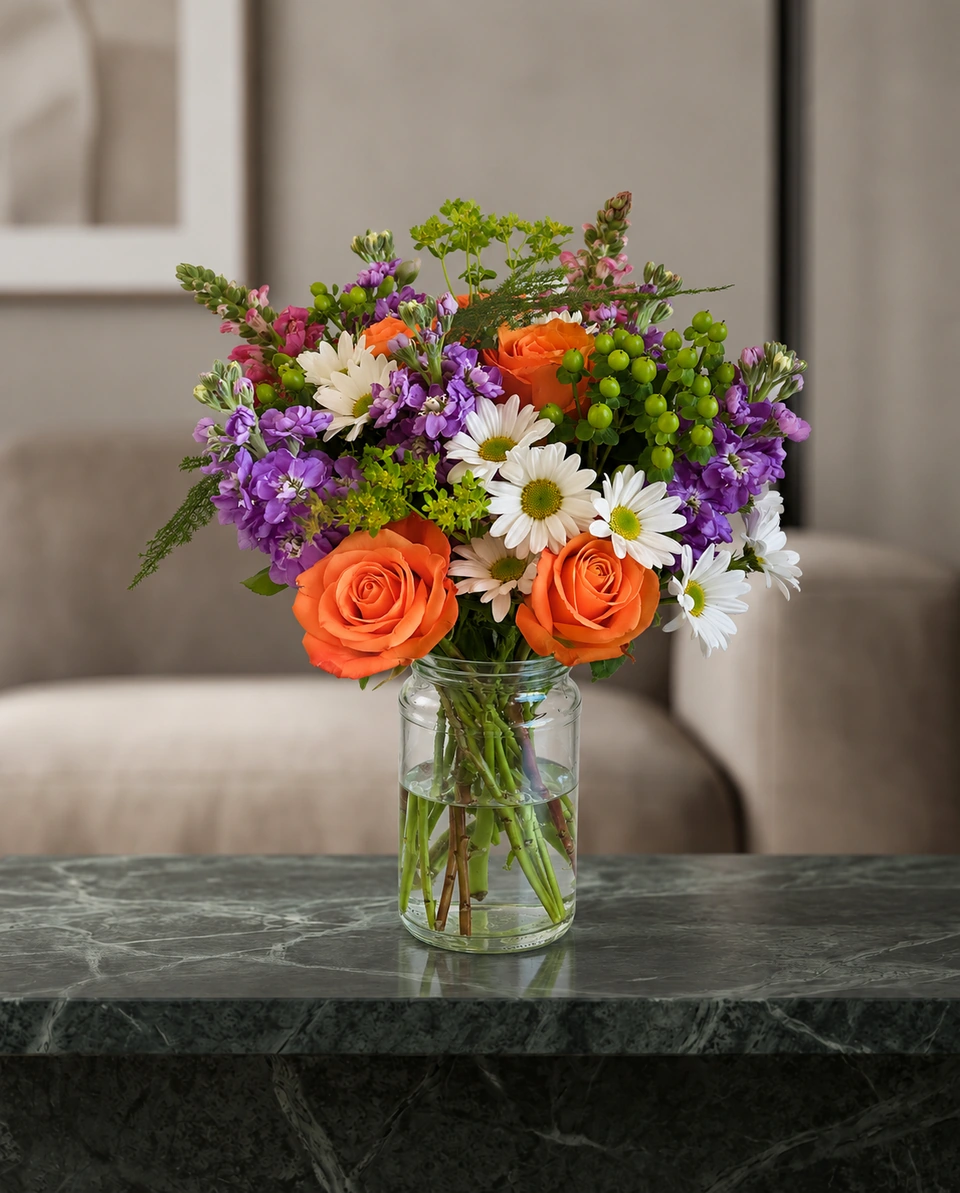
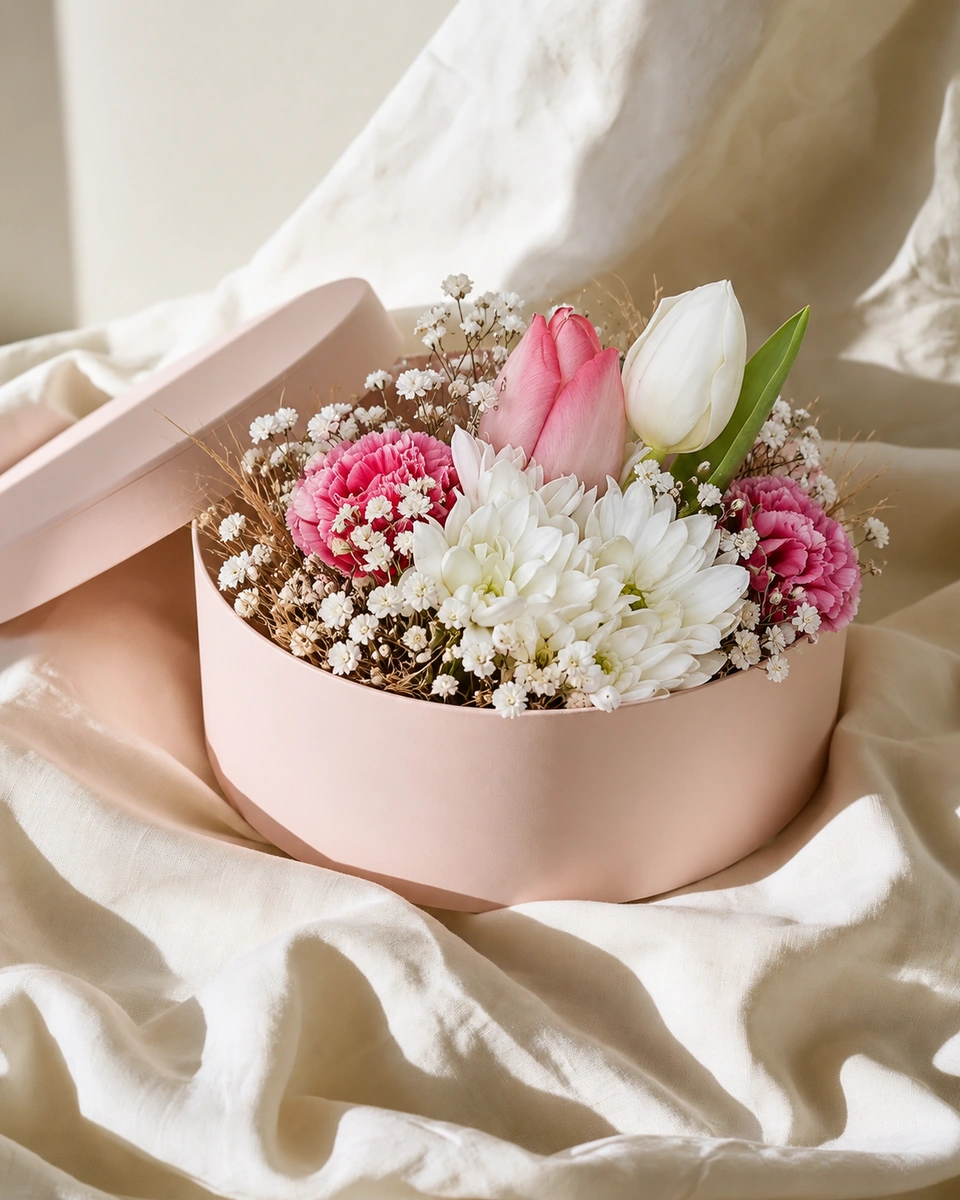
Use a few designs you can repeat. For each one, write its name, price, included container, approximate real measurements and the pickup window. A photograph of last month’s recipe is not a reliable substitute for this week’s bouquet. Change the listing when the design or what is included changes.
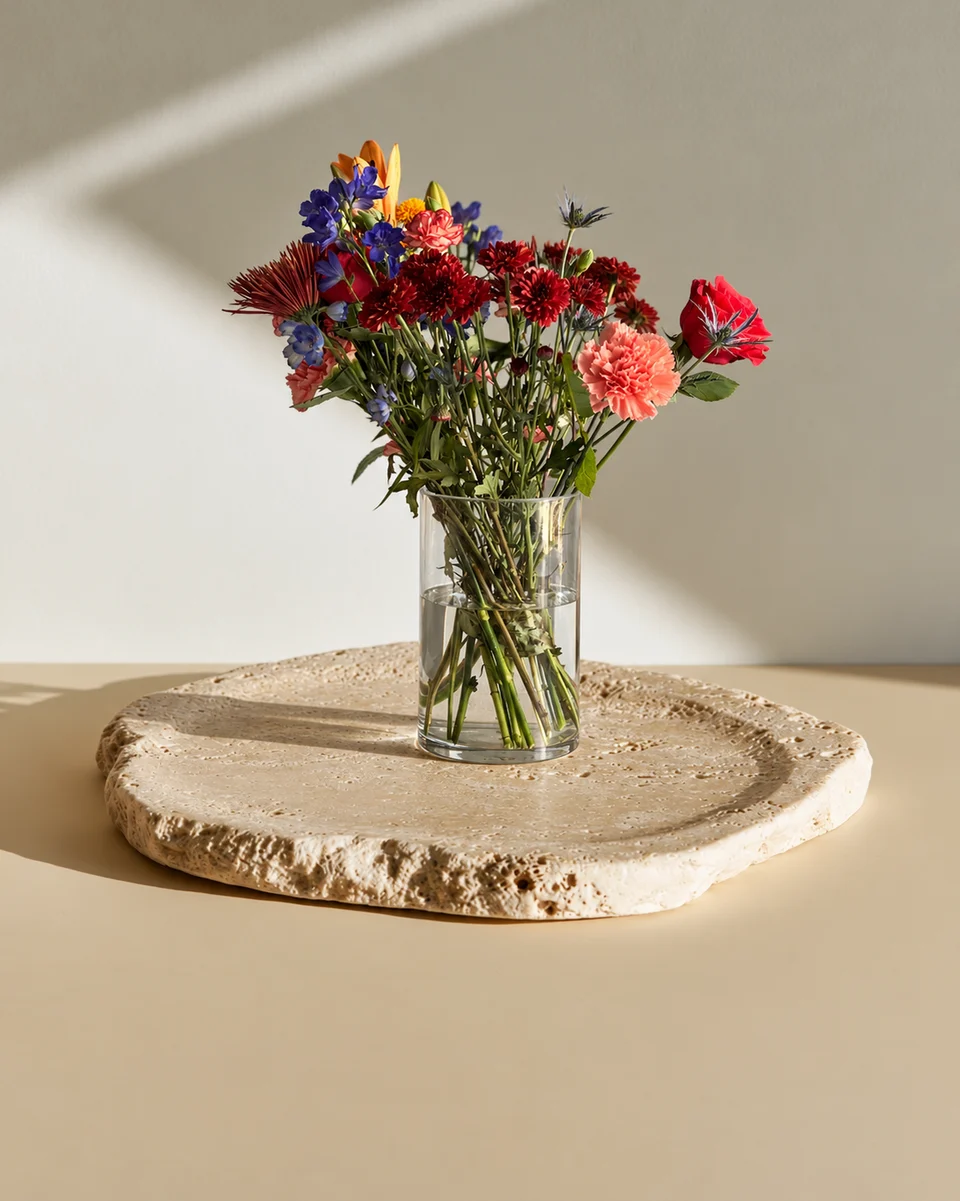
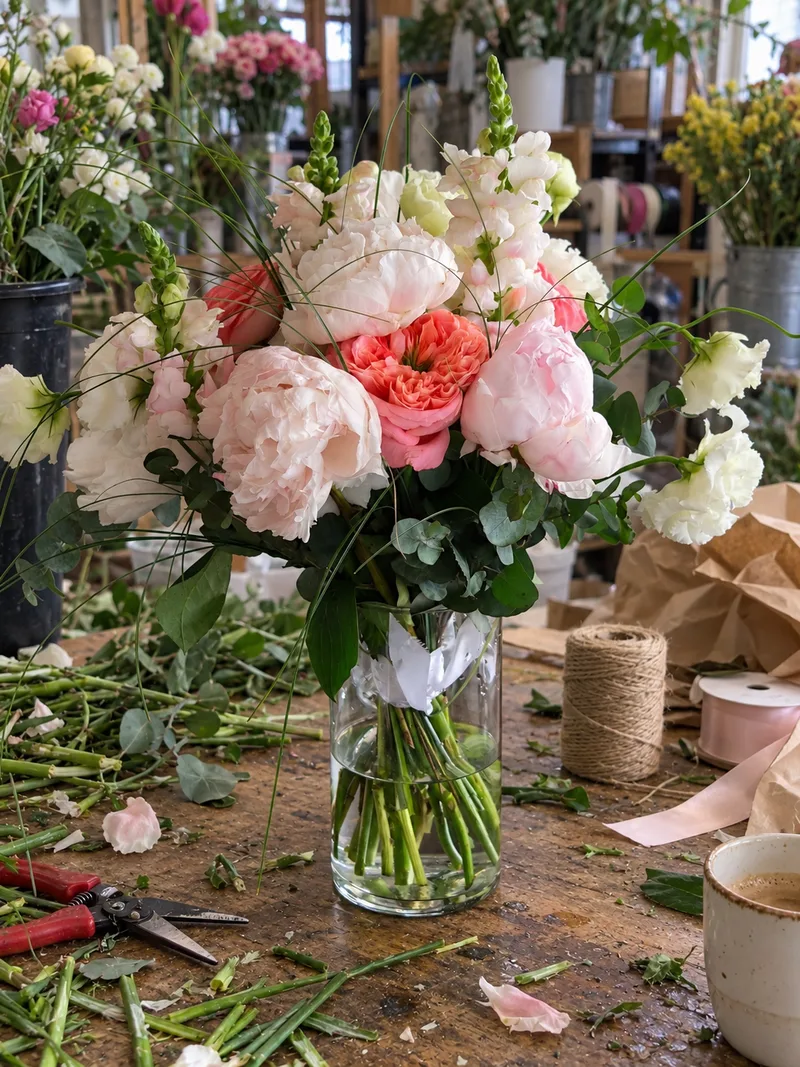 Phone photo
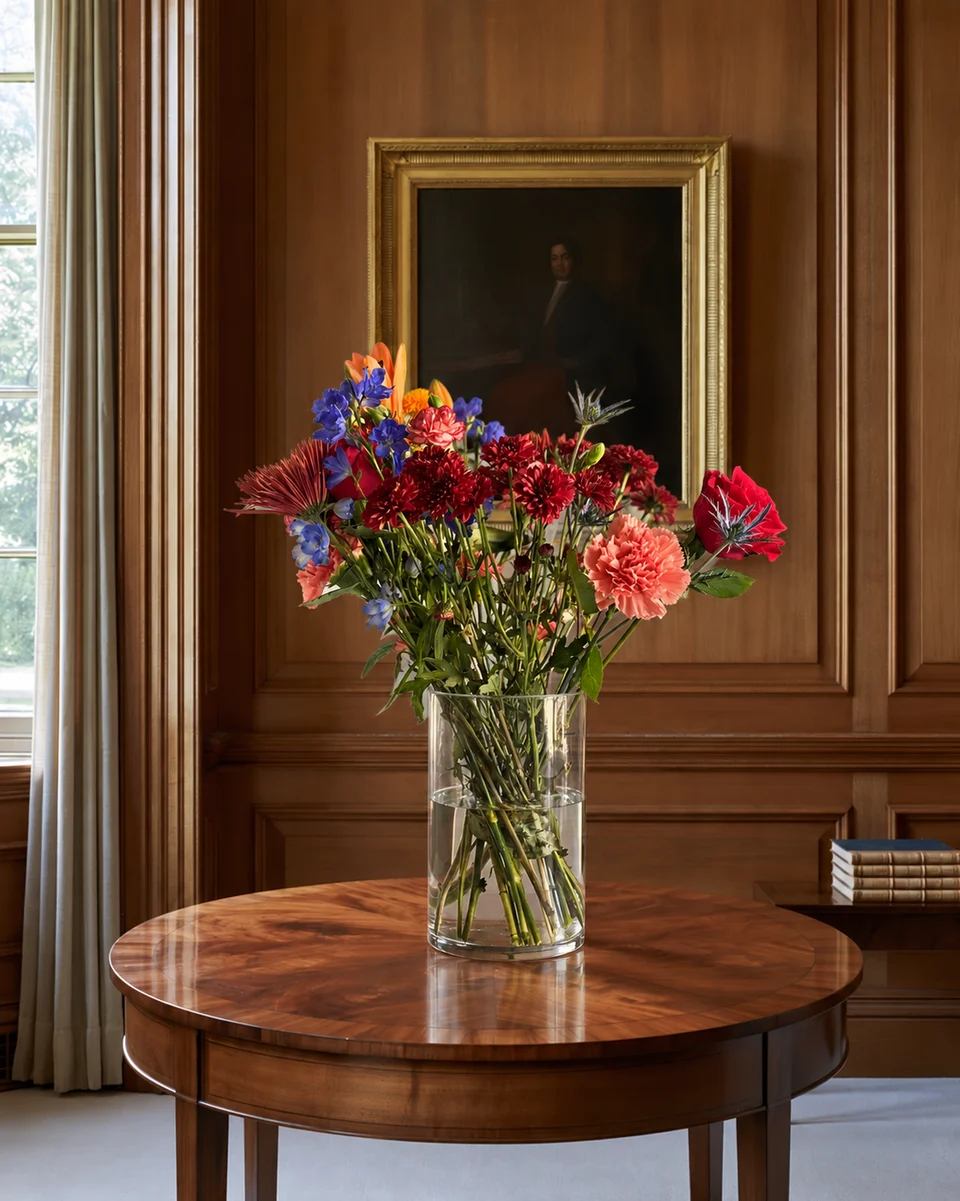
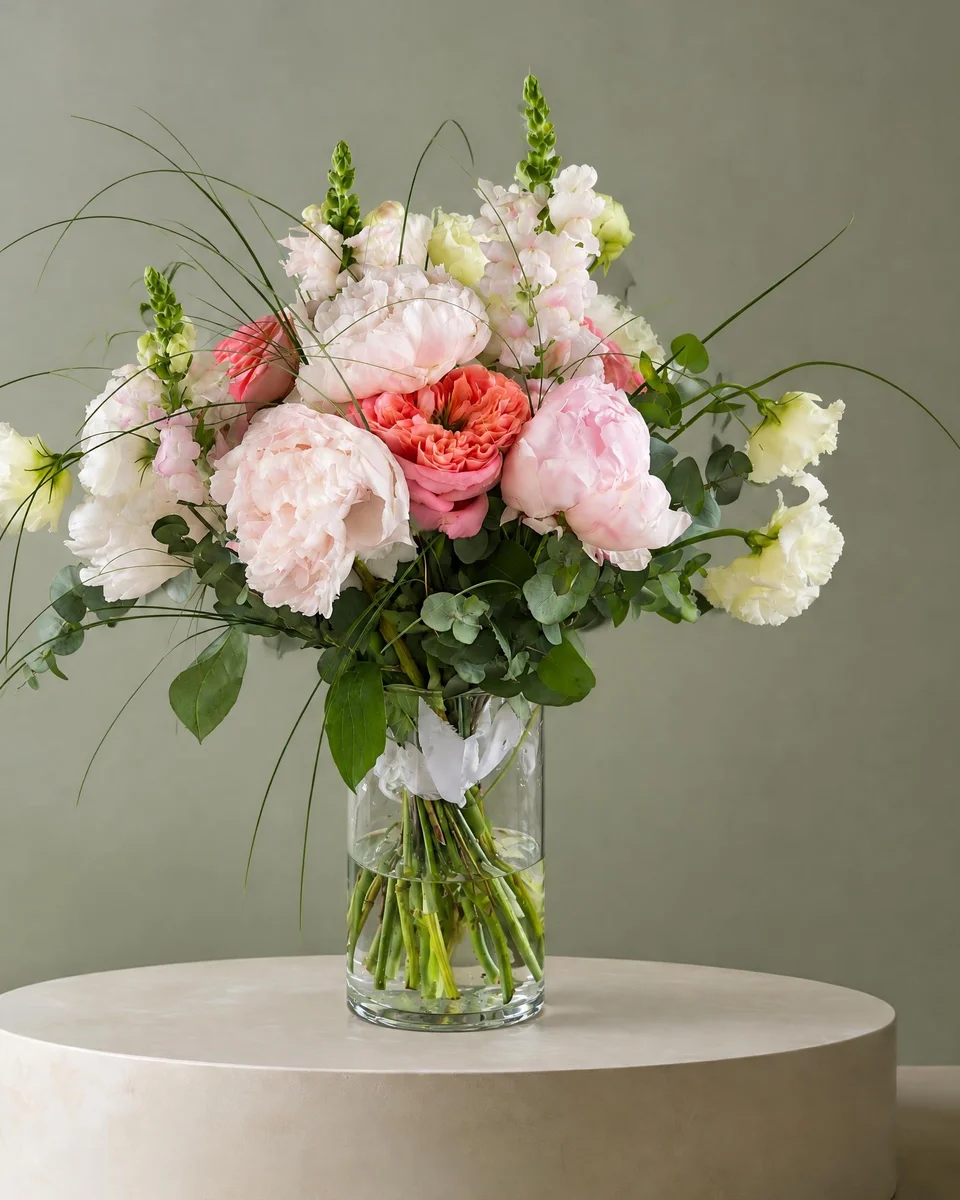 Studio photo
Square image guidance
Square’s official item-image guidance recommends at least 2000 × 2000 px with a 1:1 aspect ratio. It accepts JPG, JPEG, PNG and GIF, with files up to 15 MB. Check the storefront’s actual thumbnail crop before publishing. Source checked 16 November 2026.
The final file matters more than the label on the export button. Choose a generated size with enough pixels for your crop; optional 4K uses two credits in FlowerShoot. The free photo resizer can crop an image you own, but cannot restore missing detail.
Make a pickup menu from your own flowers
Photograph each finished design
Capture the complete piece on your phone, including the vase or wrap. Keep an original real-background photo.
Choose a calm shared room
A Kept as made studio or pedestal suits a product menu. Compare the result with its original, including colours and vessel.
Prepare the Square image
Download with a paid FlowerShoot plan, make a square crop and leave breathing room for the storefront thumbnail.
Update the Square item
Upload manually, check the item name and price, and confirm pickup settings in your own Square account.
Keep the shop cost separate from the photo cost
Square’s US page offers Square Free without a monthly subscription charge; payment processing fees still apply. Features and pricing vary by plan and country. FlowerShoot is optional and separate: compare its plans only after testing your own arrangement. You do not need to subscribe just to take a useful phone photo.
Use the same piece in the weekly post
After checking the listing image, Design & share can make a product card or menu with your shop name, price and logo. Add the correct collection date in your own words. A post is a marketing design, not a replacement for inventory or pickup scheduling in Square.
Read next: start a flower business from home, sell flowers online and the free menu maker.
Made only for florists
From a bench photo to your next listing
Your flowers are the product. FlowerShoot makes the photo as lovely as the arrangement, wherever you share it: one phone photo in, a studio photo out.
For social media
Fresh posts and Stories every week, without a photo shoot or moving a single bucket. Download post and Story sizes with your logo and a caption, and let your flowers shine in a calm, professional feed.
For selling on your website
Choose a house style for your collection, then check each result against the piece you sell. Keep a real product photo alongside staged views, with clear size and vessel details.
- Skip the photographer. A studio photo from one phone photo, in about a minute.
- Standard photos from 19.5¢. One standard photo uses 1 credit. Monthly plans start at $10 for 50 credits. Optional 4K generation uses 2 credits.
- Try before you subscribe. Start with 3 free previews, no card. Monthly plans start at $10 for 50 credits.
- Your real flowers. Start from your own arrangement. Compare the result with the original before listing it.
- 200+ rooms made for flowers. Studios, pedestals, homes, weddings and every season.
Quick answers
What size should Square flower product photos be?
Square recommends at least 2000 × 2000 px, square, with an image file no larger than 15 MB. Inspect the crop on your own storefront.
Can I use Square for a market pickup menu?
Square’s online-store page describes pickup and local delivery options. Set the availability and collection details in your Square account; a photo tool does not manage them.
Does FlowerShoot connect to Square?
No. Download a photo with a paid plan and upload it to Square manually. Design & share can also prepare a matching menu or social post.
Do I need to buy a photo plan before I open my shop?
No. Begin with clear real phone photos. Try FlowerShoot’s free previews if a styled setting would help, then choose a plan only if you need the downloads.
Sources
- Square item-image requirements — checked 16 November 2026
- Square US online-store plans and pickup features — checked 16 November 2026
Platform rules change. Check each one’s current help pages before you upload.