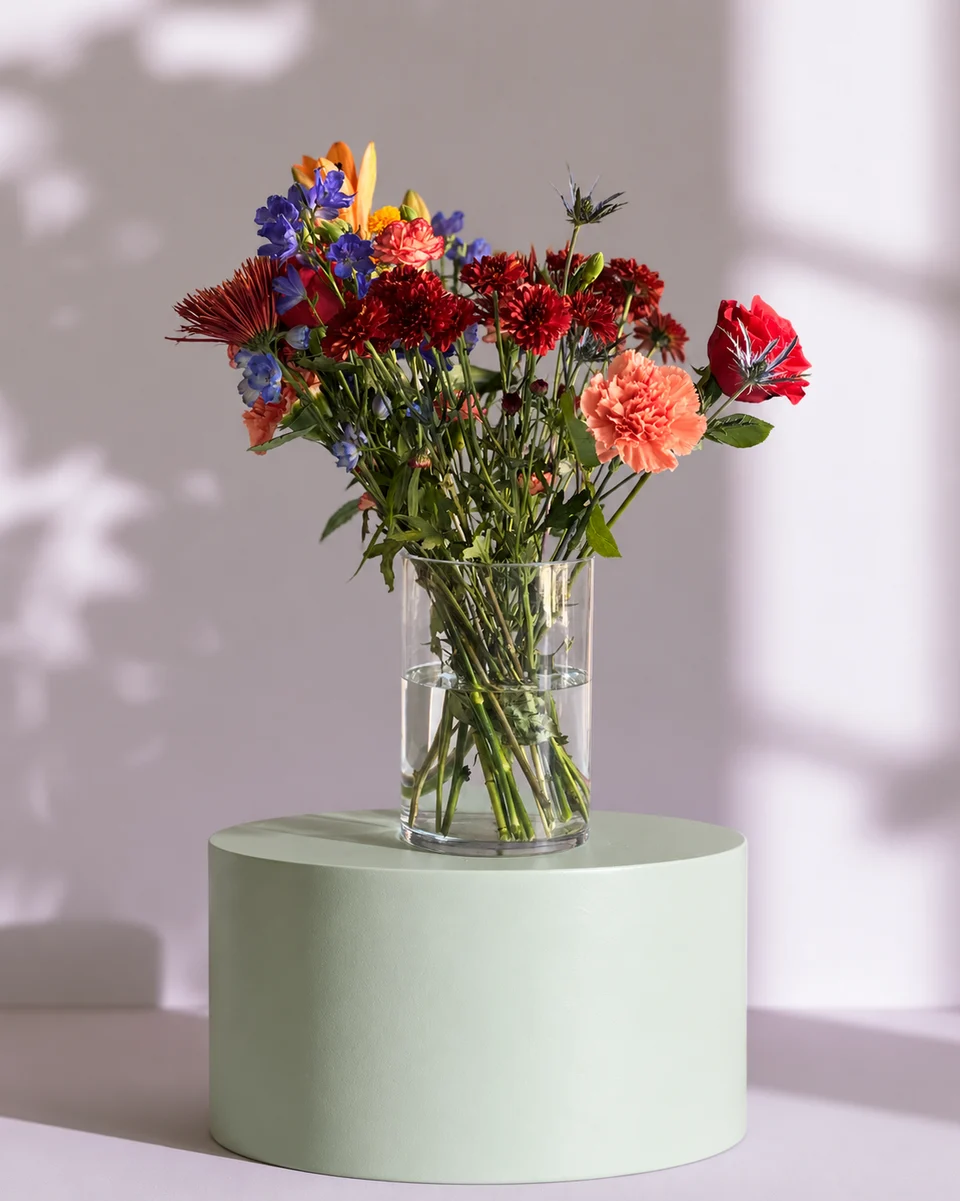
For florists taking orders in messages
A WhatsApp Business catalog for your flower menu
Short answer
If you keep sending the same bouquet photos and prices in messages, build a small WhatsApp Business catalog with one item per design. Show the real size, container, price and collection information. FlowerShoot can make a styled product photo from your phone image in about a minute, then prepare a branded menu or card. Plans start at $10 for 50 standard photos; try 3 free previews. A paid plan downloads the images; add them to WhatsApp manually.
In this guide Jump to what you need
If every enquiry starts with “what bouquets do you have?”, a small catalog can save you assembling the same answers repeatedly. Use accurate product photos and a clear order process alongside your flower menu.
Give every design a clear identity
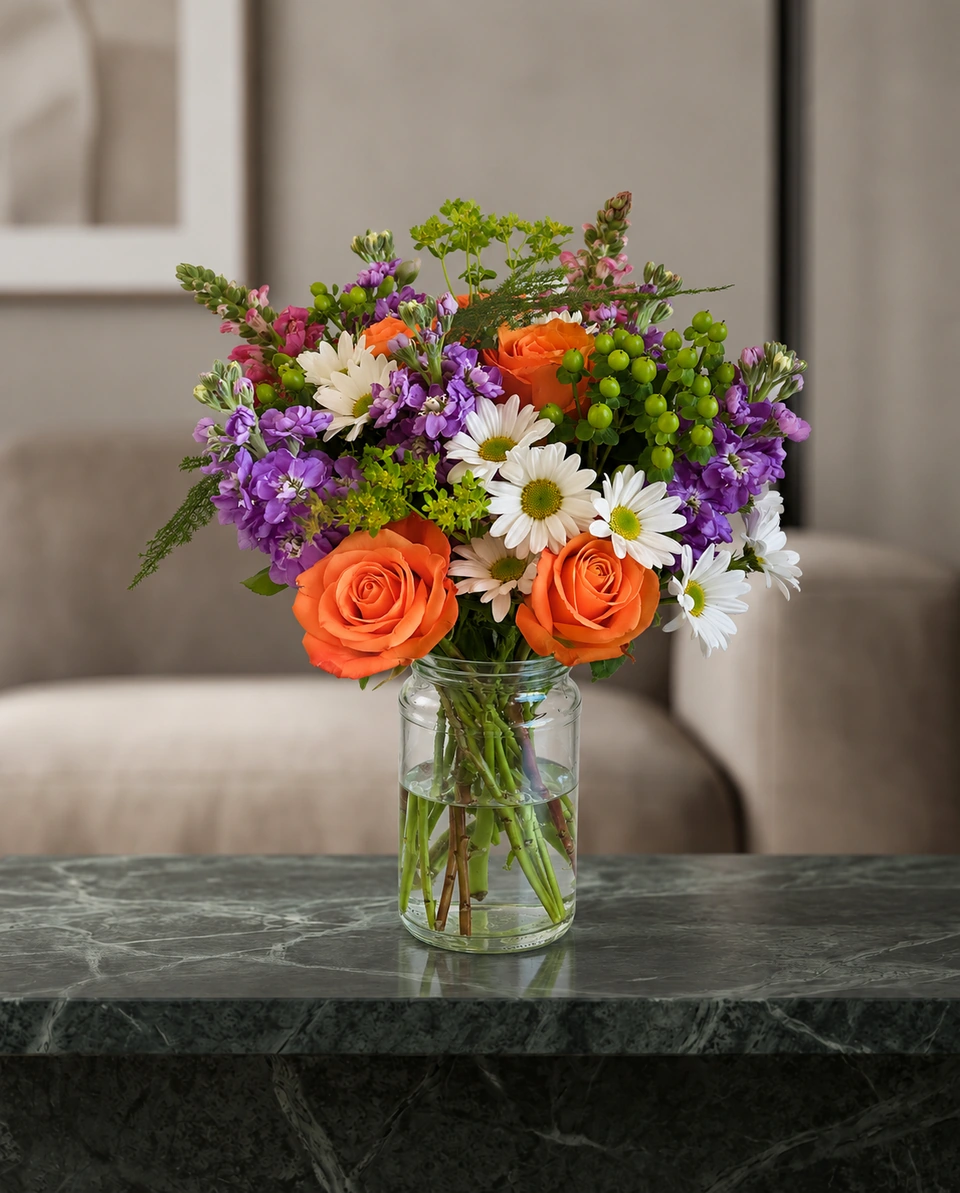
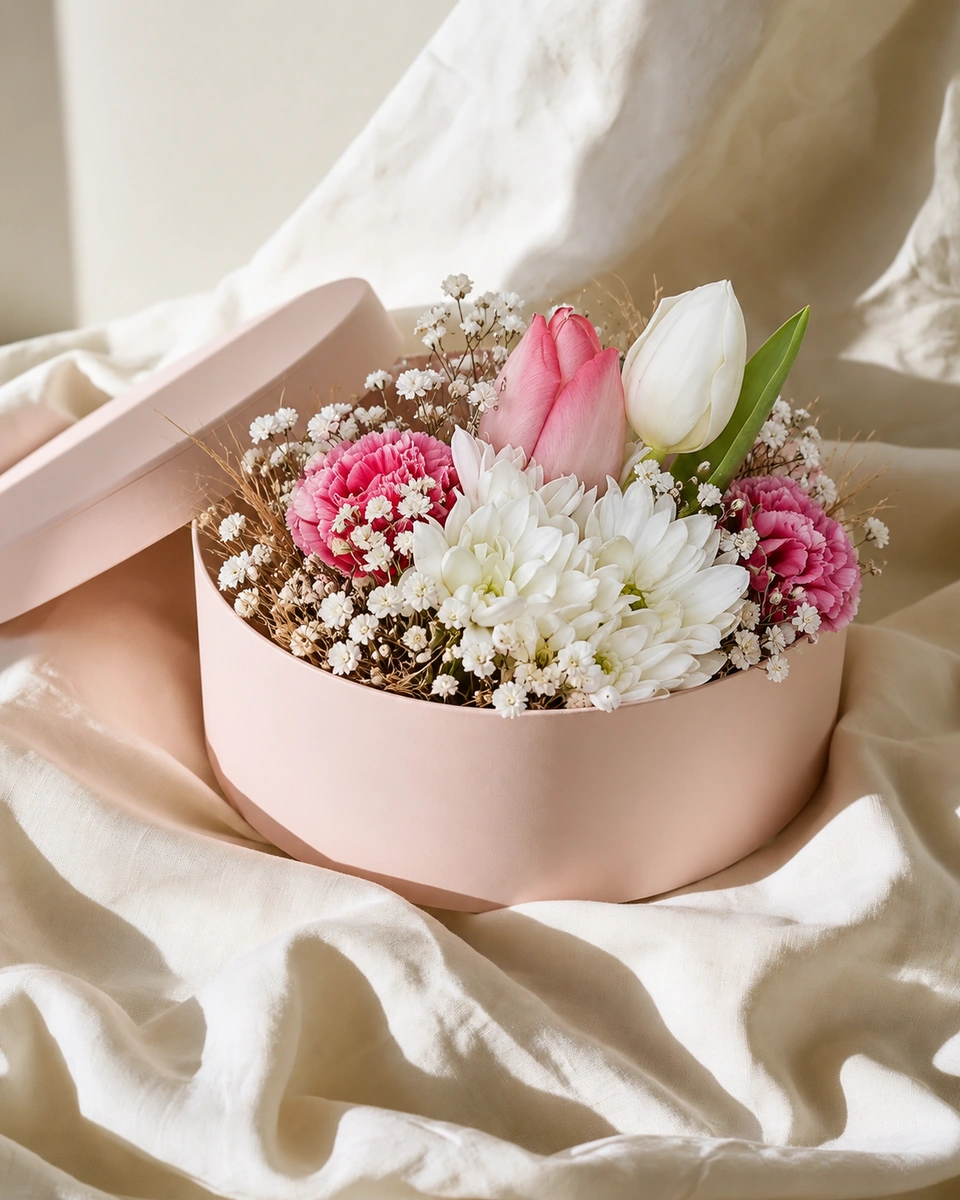
Choose an item name that a customer can quote back to you. State what they receive, which container is included, the size, ordering deadline and how collection or delivery is confirmed. Keep special requests in the conversation; a photograph alone cannot explain a colour substitution or a changed vessel.
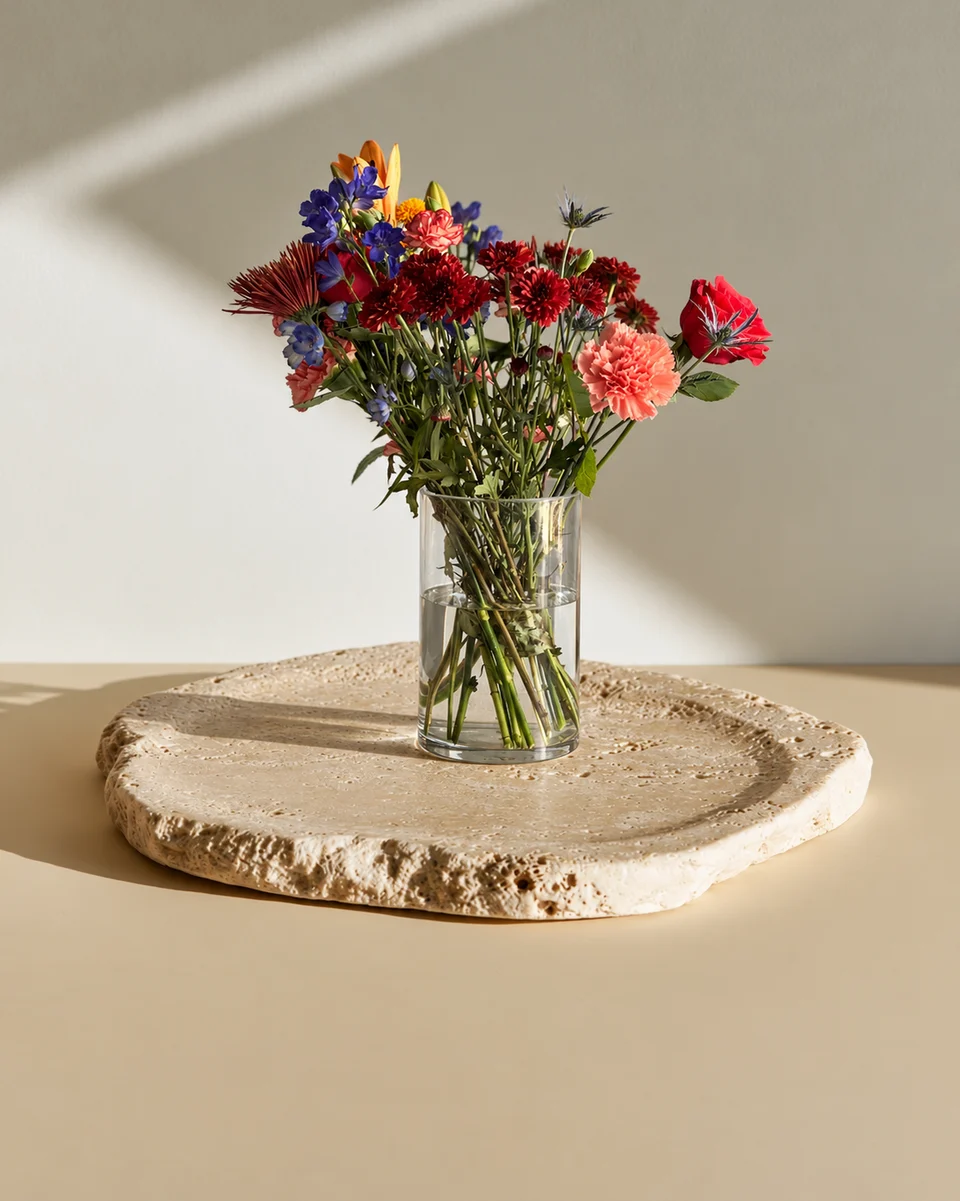
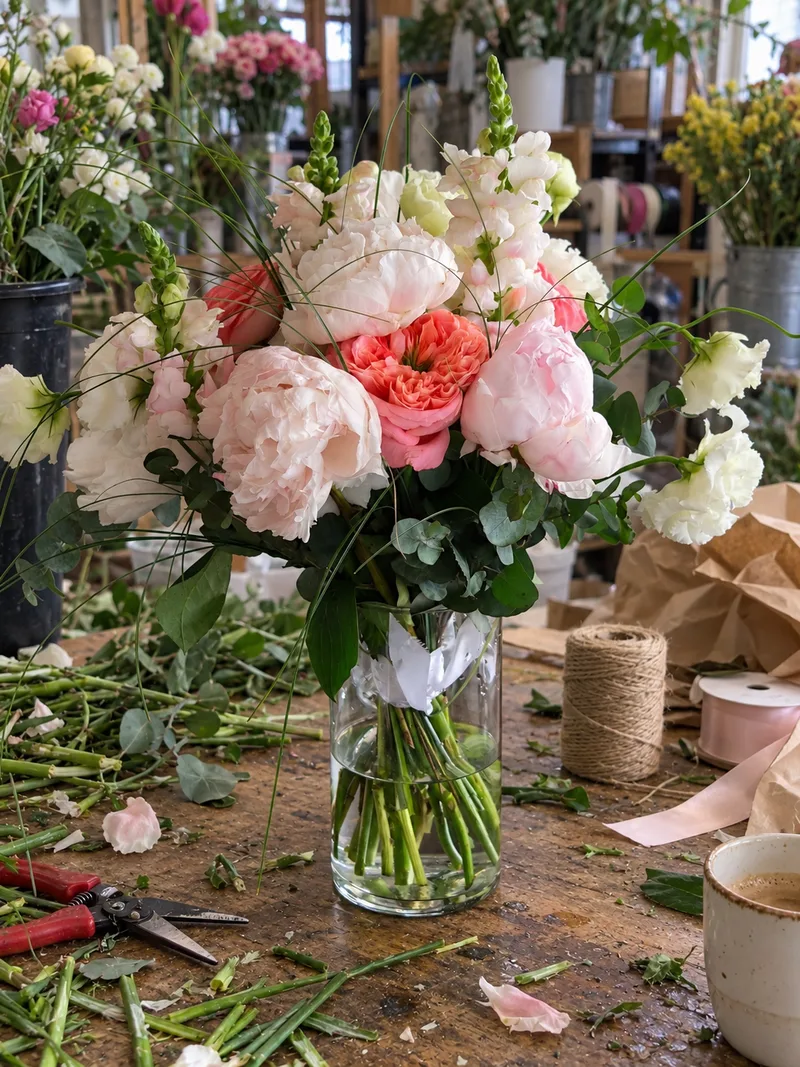 Phone photo
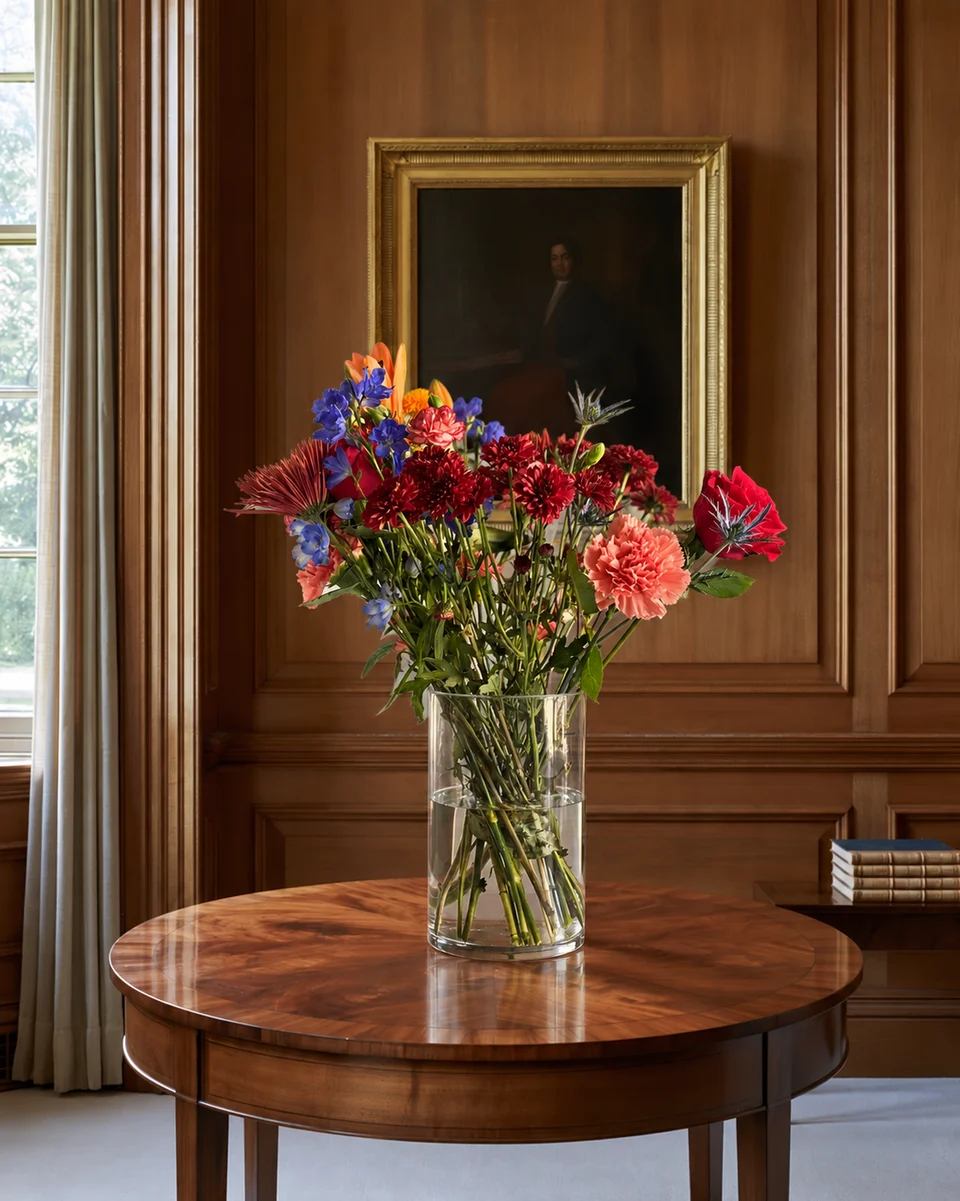
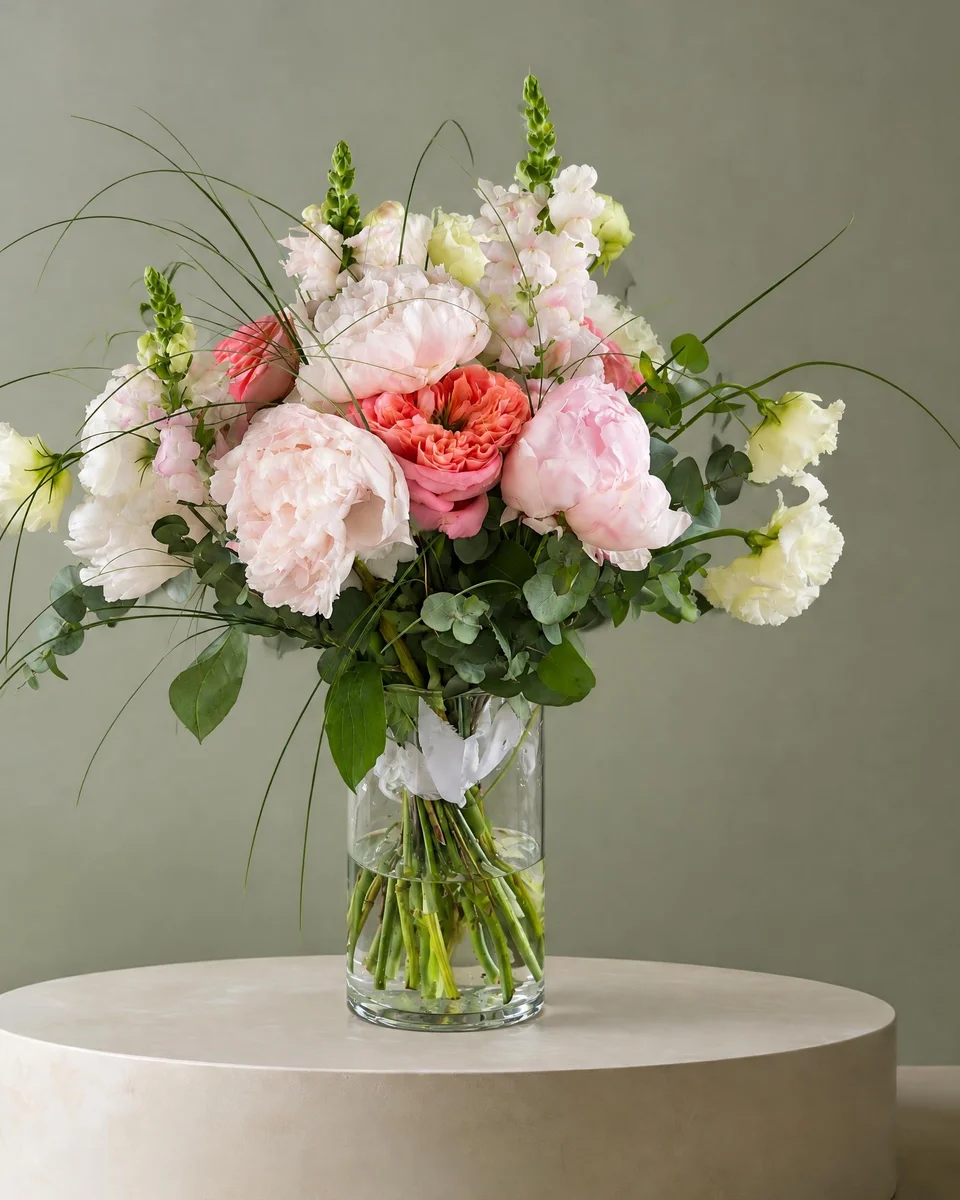 Studio photo
What WhatsApp’s catalog guidance actually says
WhatsApp Business’s official catalog instructions allow up to ten images for an item. They ask for an item name and country of origin, with optional price, description, link and product code. Items are reviewed before they become visible. Check the guidance for the version of the app you use. Source checked 16 November 2026.
We have not verified an official universal pixel-size requirement for catalog photos. Use a clear image showing the complete piece, inspect its thumbnail in your own app and keep an original view. A square crop is a practical starting layout here, not an asserted WhatsApp requirement.
Prepare the photos and add the items
Make and photograph the real design
Keep the flowers, vase or wrap and size consistent with the offer. Photograph the whole piece with your phone.
Create an optional styled version
Choose a Kept as made FlowerShoot room, compare the preview with its original and download with a paid plan if you want to use it.
Build the catalog item
Open Catalog in WhatsApp Business, add the image and the required item information, then save and check its review state.
Share the relevant item
Use the catalog or item link in a reply instead of sending every photo again. Confirm stock, price and collection details before accepting an order.
Keep sold-out designs out of the conversation
WhatsApp’s catalog guidance explains how to hide an item and show it again later. Use that when a design is unavailable rather than leaving a photo that you cannot fulfil. Review the current menu before your weekly availability message. FlowerShoot does not sync stock, send messages or approve catalog items.
One menu for the catalog and your social post
Design & share adds your shop name, prices and logo to a card or menu. Check that every price and date matches the actual catalog. Your original photo remains useful for product details; use a styled image only when it represents the piece honestly. Test the preview on your own flowers before paying for photo downloads.
Read next: consistent flower shop photos, Facebook flower photos and sell flowers online.
Made only for florists
From a bench photo to your next listing
Your flowers are the product. FlowerShoot makes the photo as lovely as the arrangement, wherever you share it: one phone photo in, a studio photo out.
For social media
Fresh posts and Stories every week, without a photo shoot or moving a single bucket. Download post and Story sizes with your logo and a caption, and let your flowers shine in a calm, professional feed.
For selling on your website
Choose a house style for your collection, then check each result against the piece you sell. Keep a real product photo alongside staged views, with clear size and vessel details.
- Skip the photographer. A studio photo from one phone photo, in about a minute.
- Standard photos from 19.5¢. One standard photo uses 1 credit. Monthly plans start at $10 for 50 credits. Optional 4K generation uses 2 credits.
- Try before you subscribe. Start with 3 free previews, no card. Monthly plans start at $10 for 50 credits.
- Your real flowers. Start from your own arrangement. Compare the result with the original before listing it.
- 200+ rooms made for flowers. Studios, pedestals, homes, weddings and every season.
Quick answers
Can I put FlowerShoot photos in a WhatsApp catalog?
You can prepare an accurate product image and add it manually. Catalog items still need WhatsApp’s review; we do not promise approval or an integration.
What size should WhatsApp catalog photos be?
An official universal pixel minimum was not verified for this guide. Start with a clear crop of the whole piece and inspect it in your app. A suggested square layout is not an official requirement.
Can FlowerShoot send my catalog to customers?
No. It prepares photos and designs. You add items and share links yourself through WhatsApp Business.
Can I hide a bouquet when it sells out?
WhatsApp’s own catalog instructions describe hiding and unhiding items. Check the current menu and availability before sharing it.
Sources
- WhatsApp catalog creation and item visibility — checked 16 November 2026
- WhatsApp catalog sharing — checked 16 November 2026
Platform rules change. Check each one’s current help pages before you upload.