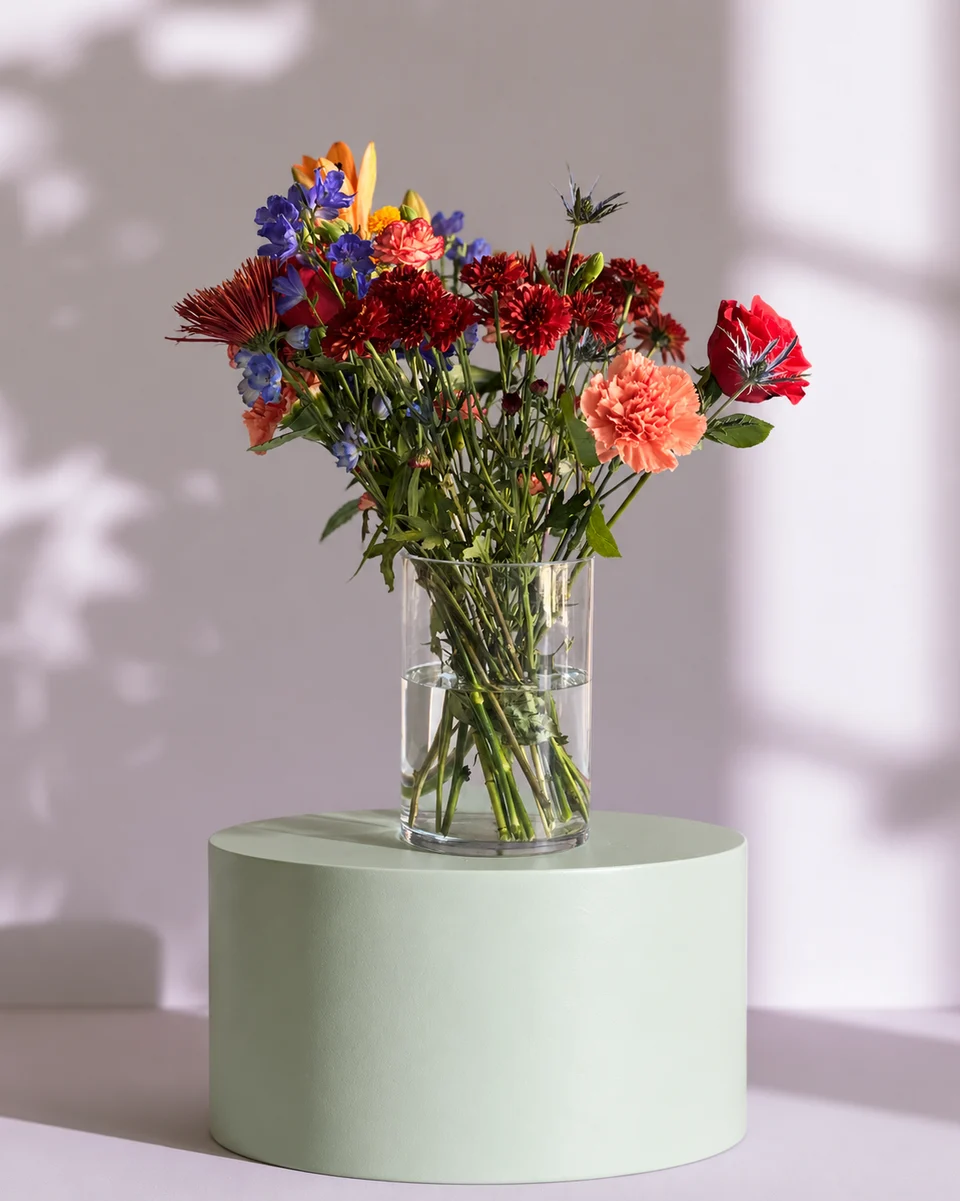
For Shopify flower sellers
Shopify florist product photos without rebuilding the set
Short answer
If your Shopify flower collection looks uneven, give every design the same crop and a calm setting before uploading it. FlowerShoot makes a studio product photo from your own phone photo in about a minute; reuse a Kept as made room and compare each result with the original. Design & share prepares menus and posts too. Plans start at $10 for 50 standard photos; try 3 free previews. Download with a paid plan and upload to Shopify manually.
In this guide Jump to what you need
When a collection page mixes bench photos, dark corners and different crops, the designs are hard to compare. Start with a repeatable flower listing photo workflow, then fit the files to the Shopify theme you actually use.
Decide what each product image must show
List the arrangement, vase or wrapping and size you actually sell. Make a real sample for each materially different option. A generated picture should not stand in for a larger bouquet you have not made. Keep your original and a real detail view so buyers can inspect the product, not only its setting.
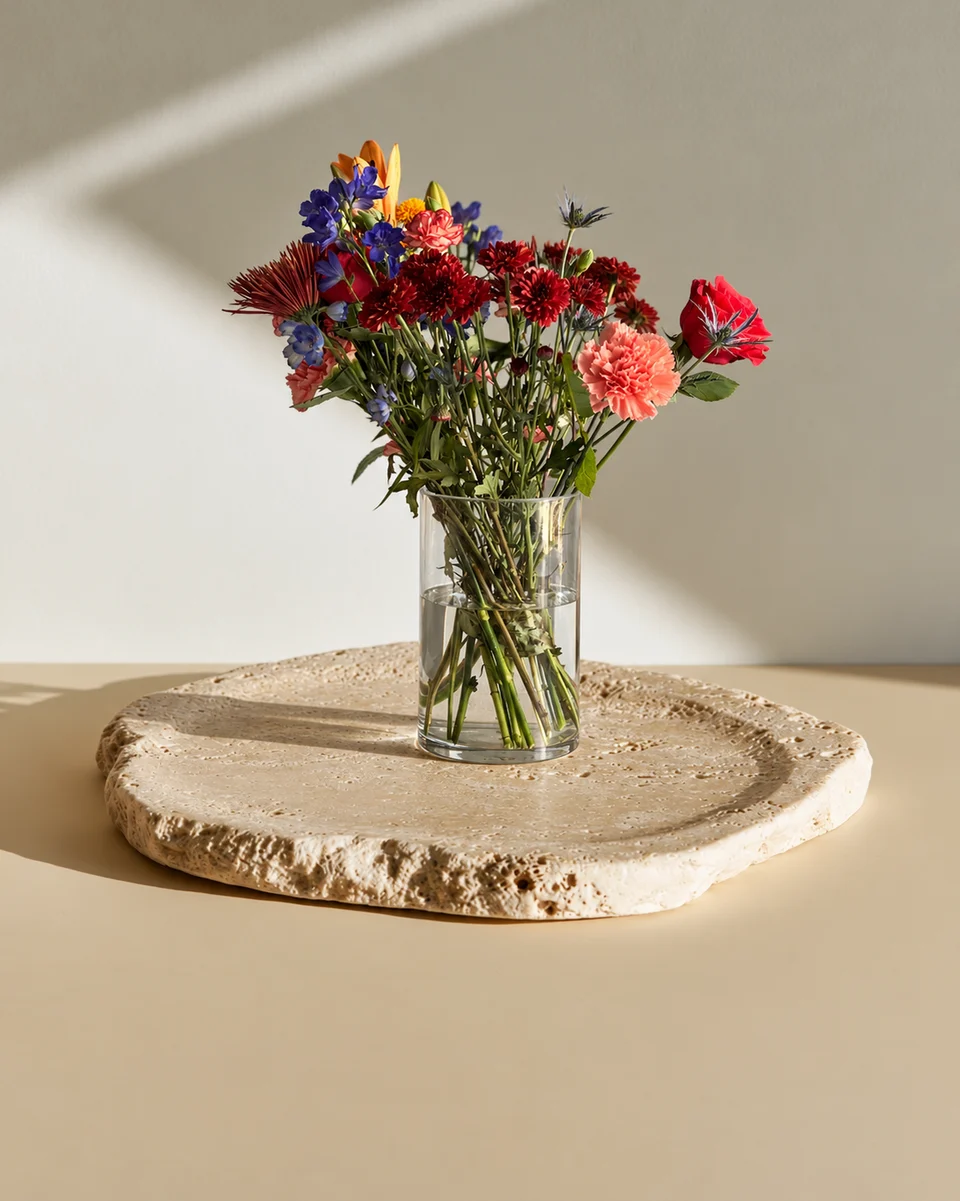
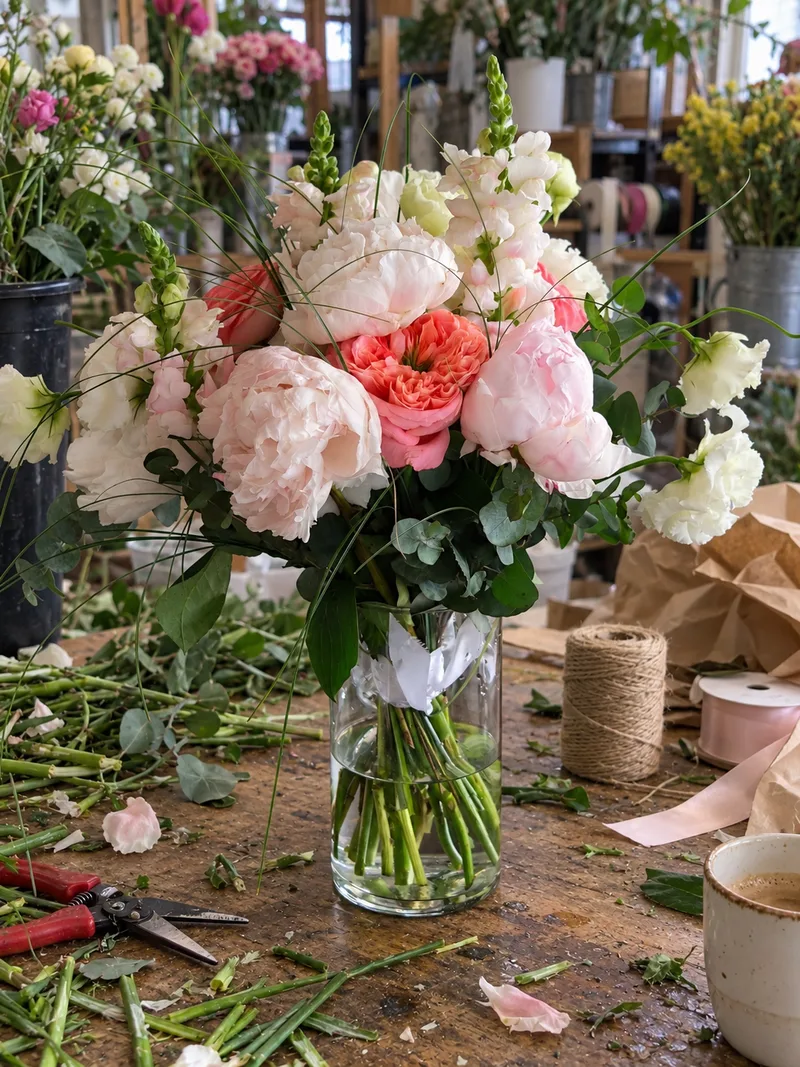 Phone photo
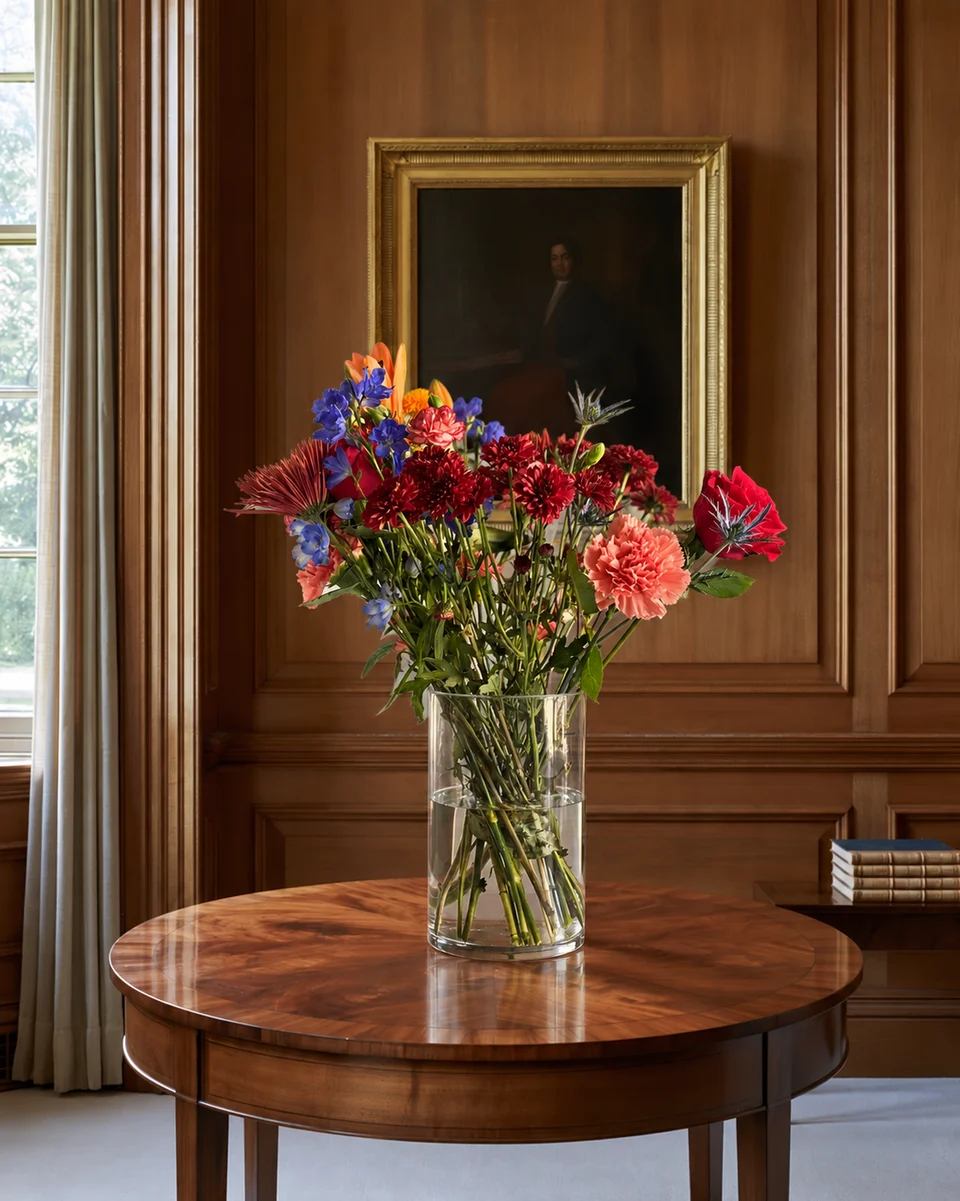
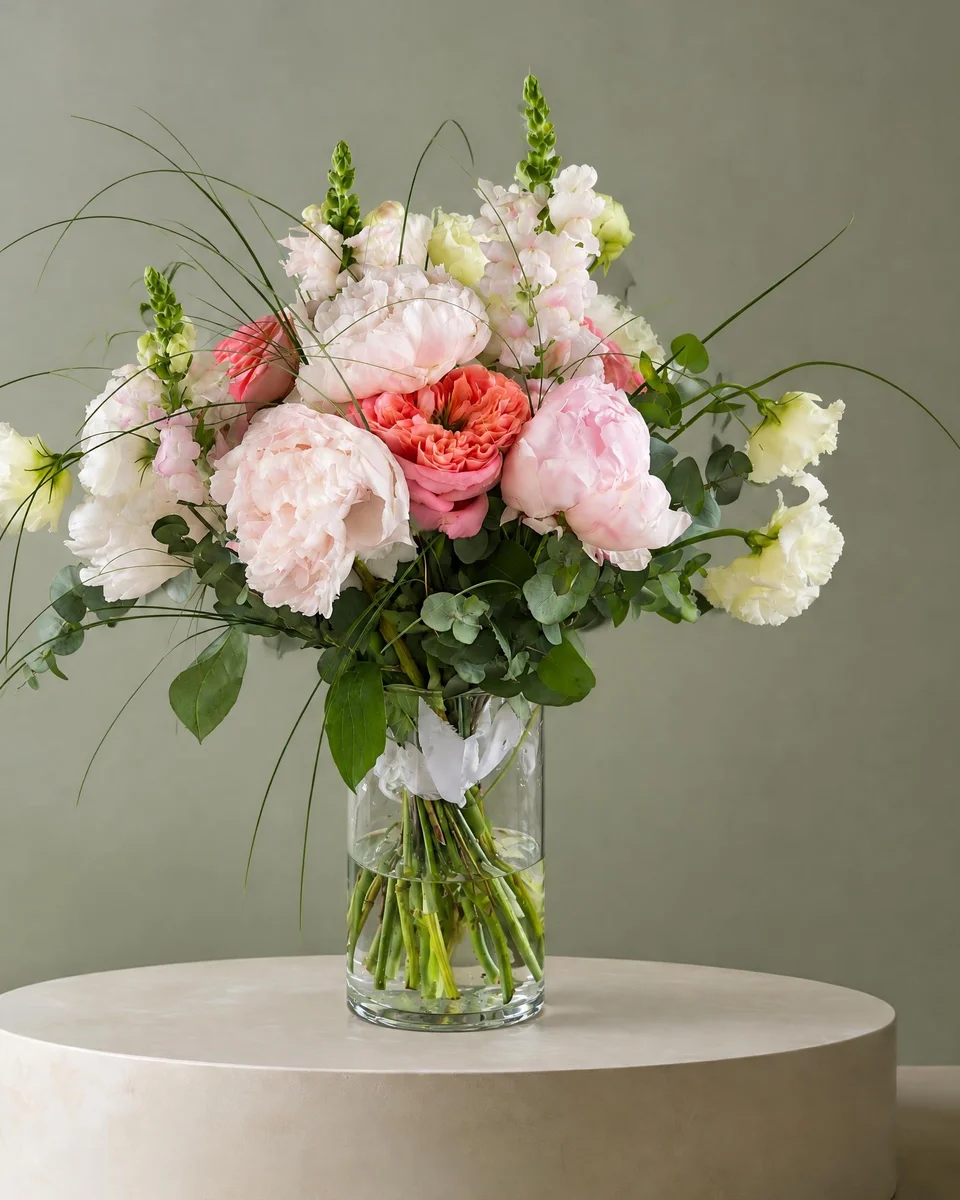 Studio photo
Shopify image requirements, checked at the source
Shopify recommends 2048 × 2048 px for square product images, permits up to 5000 × 5000 px or 25 megapixels, and requires files below 20 MB. Use a consistent aspect ratio for main images so collection cards line up. These are Shopify recommendations and limits, not a promise that every theme crops the same way.
Check your generated file before cropping: a standard image may have a shorter side below a platform’s recommended target. Optional 4K uses two credits. Resizing a smaller file does not create new flower detail.
Prepare the menu in FlowerShoot
Start with a complete phone photo
Use even light and leave space around the highest bloom and the vessel. Keep the original for comparison.
Choose one shop setting
Pick a Kept as made room. Reuse it for the menu, allowing for generated framing and placement differences; inspect every result.
Download and upload manually
Choose a paid plan to download at the generated size. Crop consistently, upload to the product in Shopify and check the desktop and phone storefront.
Match the image to the actual variant
Use a real image for each different size or vessel. Select the correct variant image in Shopify rather than making one picture imply every option.
Use the tools you already have
Shopify has its own media editor, including background editing. If that gives you the simple result you need, start there. FlowerShoot is useful when you also want flower-specific rooms, wreath-door settings, product cards and a matching social campaign. It does not connect to Shopify or publish listings for you.
Keep the first shop small
Choose a few repeatable designs before paying for extra tools. Shopify says Starter is unavailable to new stores; check the current plans in your country rather than building a budget around an old Starter price. FlowerShoot is a separate photo subscription; compare its local plan prices with the number of styled images you will use.
Read next: check your flower listing photos, consistent flower shop photos and the free photo resizer.
Made only for florists
From a bench photo to your next listing
Your flowers are the product. FlowerShoot makes the photo as lovely as the arrangement, wherever you share it: one phone photo in, a studio photo out.
For social media
Fresh posts and Stories every week, without a photo shoot or moving a single bucket. Download post and Story sizes with your logo and a caption, and let your flowers shine in a calm, professional feed.
For selling on your website
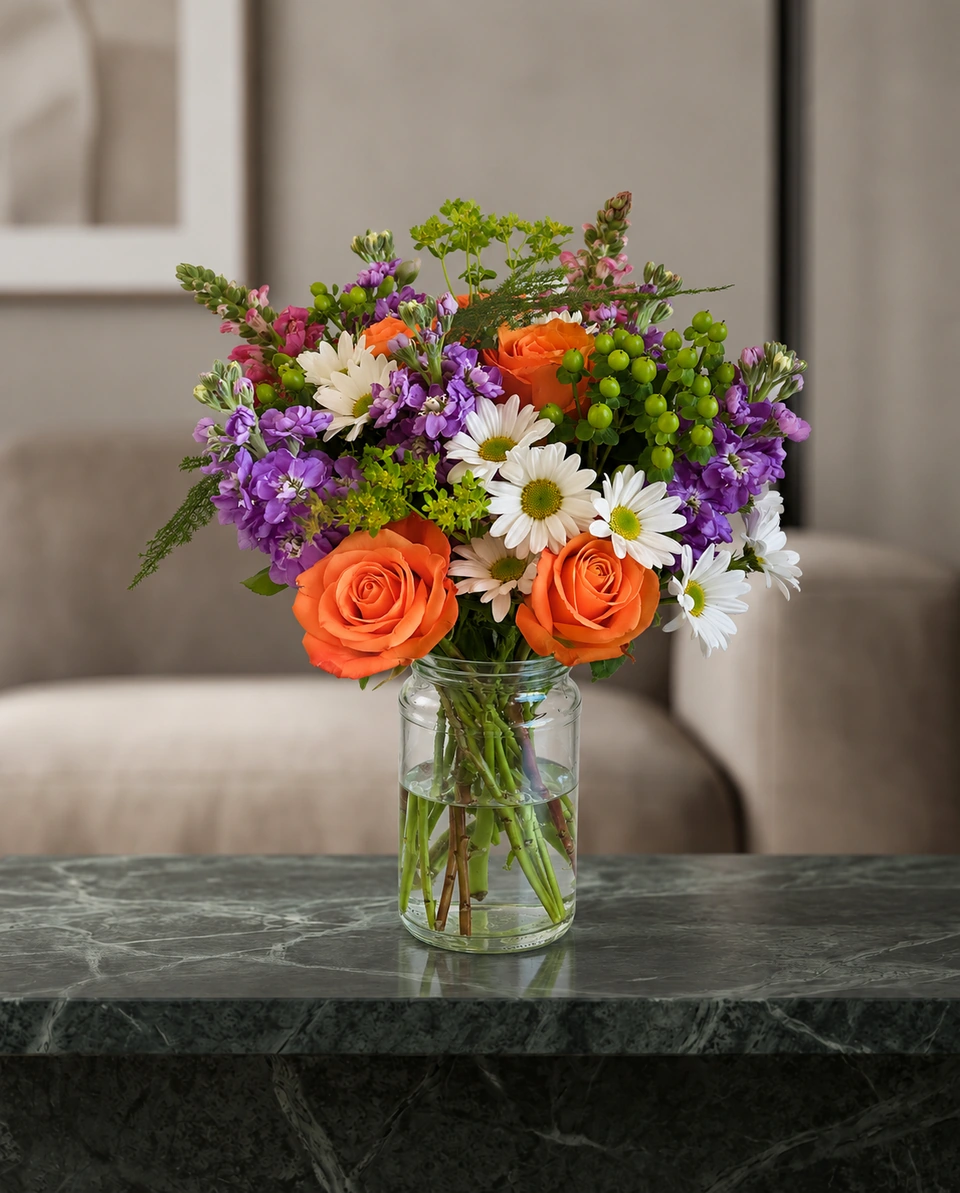
Choose a house style for your collection, then check each result against the piece you sell. Keep a real product photo alongside staged views, with clear size and vessel details.
- Skip the photographer. A studio photo from one phone photo, in about a minute.
- Standard photos from 19.5¢. One standard photo uses 1 credit. Monthly plans start at $10 for 50 credits. Optional 4K generation uses 2 credits.
- Try before you subscribe. Start with 3 free previews, no card. Monthly plans start at $10 for 50 credits.
- Your real flowers. Start from your own arrangement. Compare the result with the original before listing it.
- 200+ rooms made for flowers. Studios, pedestals, homes, weddings and every season.
Quick answers
What size should Shopify florist product photos be?
Shopify recommends 2048 × 2048 px for square product images. Keep the same main-image aspect ratio and inspect your theme’s phone crop. The current product-media guidance is linked below.
Does FlowerShoot upload my products to Shopify?
No. Download the finished photo with a paid plan, then upload it yourself. FlowerShoot makes images and marketing designs; Shopify manages the shop.
Can I show Standard, Deluxe and Premium with one photo?
Show each size using a photo of the real arrangement for that size. A scaled crop or generated room is not evidence of a fuller recipe.
Is a separate photo subscription necessary?
No. Try your phone setup and Shopify’s included media editor first. FlowerShoot is an optional workflow for flower-only settings and matching marketing designs; test your own free previews before paying.
Sources
- Shopify product media — checked 16 November 2026
- Shopify media editor — checked 16 November 2026
- Shopify Starter availability — checked 16 November 2026
Platform rules change. Check each one’s current help pages before you upload.